
The 9 Best Laptop Docking Stations
Updated by · How we research

Nine laptop docks compared on monitor support, charging and Mac limits. The Plugable TBT4-UD5 leads, running two 4K screens with no driver over Thunderbolt. When users buy our independently chosen editorial recommendations, we may earn commissions to help fund the Wiki.
The laptop, not the dock, decides how many monitors you can run. A MacBook with a base M1 or M2 chip drives only one outside screen on its own, and many USB-C docks just mirror on a Mac. These picks suit anyone who wants monitors, wired internet, a keyboard and charging from one cable.


Editor's Notes
November 1, 2026, by Ezvid Wiki Editors:
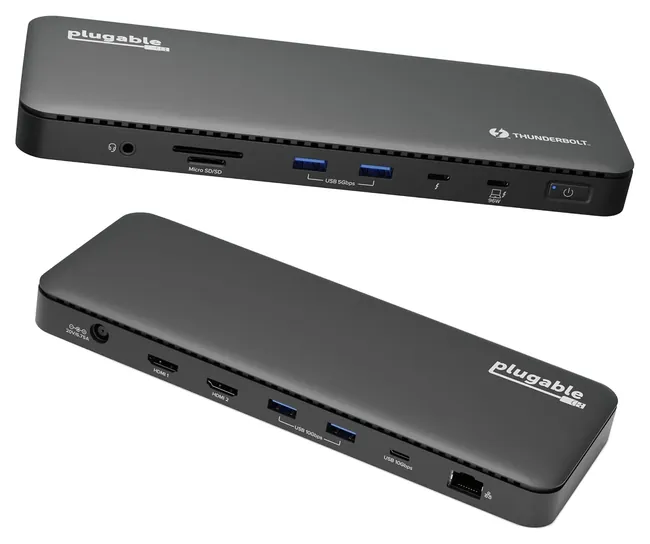
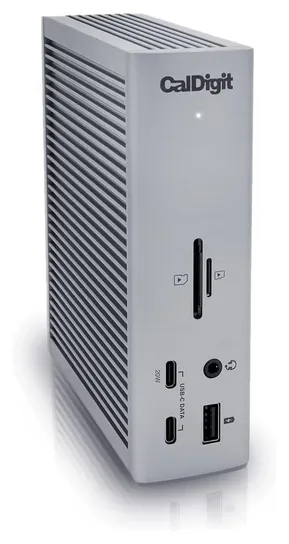
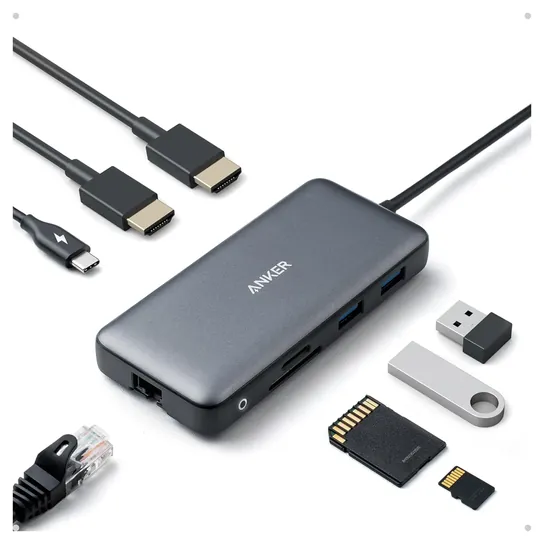
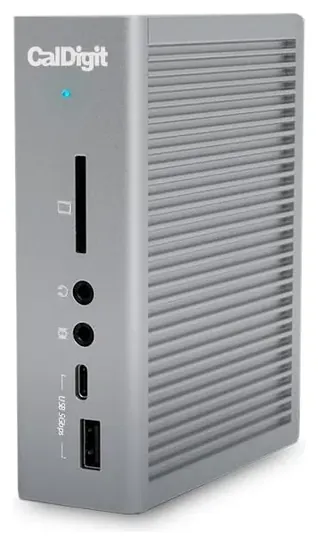
The Plugable TBT4-UD5 is our new top pick. It runs two 4K monitors over HDMI with no driver and charges most laptops at full speed, for far less than the priciest docks. The CalDigit TS4 is the step up if you want every port, and the Anker PowerExpand 8-in-1 is the cheap, packable option.
Nine of the ten earlier picks are out. Most of those 2019 and 2020 docks have left the market, the Wavlink UG39DK1V is unavailable, the Belkin Core is nearly sold out, and the Kensington SD5600T has been passed by newer Thunderbolt 4 docks. The CalDigit TS3 Plus stays for people with Thunderbolt 3 laptops.
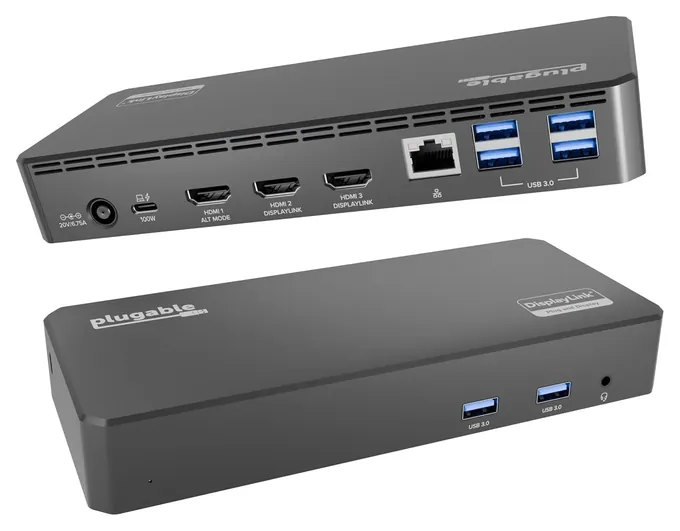
The surprise was how often the laptop, not the dock, is the limit. Plugable's Mac display chart, PCWorld's dock roundup and CalDigit's compatibility notes shaped this list more than port counts did, which is why the Plugable UD-3900PDZ is here for base MacBooks.
Earlier notes
December 24, 2020, by Christopher Thomas:
As chipsets get smaller, hubs and docks are starting to converge somewhat. The Kensington SD5600T is almost certainly the most versatile, as it's powered by an included wall adapter and works with both TB3 and USB 3.2 connections. The CalDigit Soho is one of the few other models to boast that active cross-compatibility. The high-end Siig DK0B11 and affordable Wavlink UG39DK1V are both especially useful for extending a desktop across multiple monitors, partly because of their standlone DisplayLink chipsets. Meanwhile, as long as you have your own USB-C PD power supply, the UTechSmart Hub is one of the most effective and versatile hubs you'll find.
October 4, 2019, by Christopher Thomas:
Docking stations can take one of two forms, either a small, multi-port dongle or a larger, more comprehensive piece of equipment with standalone DC power. The first type is much more portable though not quite as useful. The Belkin Mini is a good example of a simple and reliable adapter, while the UTechSmart is a great hub to bring on the road, especially if you have a good USB-C charger.
Slightly more useful are the freestanding models that actively charge your battery and power other devices without drawing power from the notebook itself. The Siig, Kensington, Echo, and CalDigit are similarly shaped models that come in a variety of configurations, so depending on your needs, one of those will provide many of the ports you need. The Plugable is similar, and it's popular among Mac users because it's specifically intended to be completely compatible with Apple products. It's important to note which ones require Thunderbolt 3 and which can use standard USB 3.1, whether in the Type-A or Type-C connector format.
The Targus Universal line almost certainly has something to suit nearly any configuration, and the Glyph is especially interesting because it allows users to set up high-speed external storage in both pre-configured setups or by adding their own aftermarket SSD.
Special Honors
CalDigit TS5 Plus CalDigit's TS5 Plus is a Thunderbolt 5 dock with 20 ports, 10-gigabit wired internet and up to 140 watts of laptop charging, made for new Macs and Windows laptops with Thunderbolt 5. It also works with Thunderbolt 4 and 3 Macs at reduced speed, but not with Thunderbolt 3 Windows laptops. It costs far more than most people need, so it's worth it mainly for video editors and anyone with fast network storage. caldigit.com
Match The Dock To Your Laptop's Port
Many cheaper laptops have a plain USB-C port with video support, called DisplayPort Alt Mode.
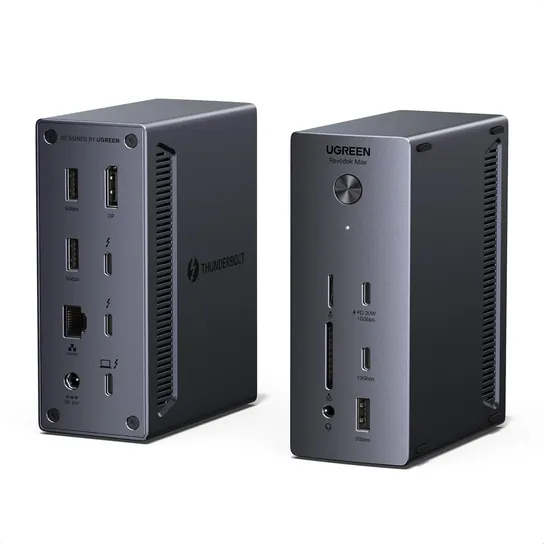
Start with the port on your laptop, because it sets what any dock can do. A Thunderbolt 4 or USB4 port carries 40 gigabits per second, enough for two 4K monitors, fast storage and charging over one cable, with no driver needed. Look for the lightning-bolt icon or check the maker's spec page (Thunderbolt Technology, USB-IF on USB4). Docks such as the Plugable TBT4-UD5, CalDigit TS4 and UGREEN U707 13-in-1 need that kind of port to work fully.
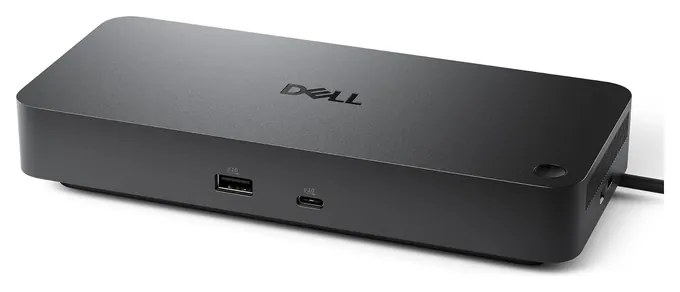
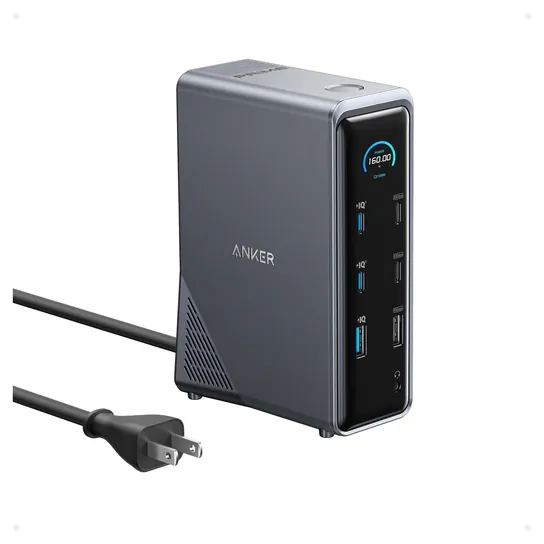
Many cheaper laptops have a plain USB-C port with video support, called DisplayPort Alt Mode. A USB-C dock like the Dell Pro Dock WD25 or Anker Prime 14-in-1 works there, but how many screens you get and at what refresh rate depends on that port. If the USB-C port has no video at all, or the laptop only has rectangular USB-A ports, you need a DisplayLink dock, which makes its own video signal with a driver. PCWorld's docking station guide walks through the same three types.
Thunderbolt 5 docks are arriving. They run at Thunderbolt 4 speed on Thunderbolt 4 laptops, but avoid them on Thunderbolt 3 Windows laptops, which CalDigit lists as unsupported for its TS5 Plus.
How Many Monitors, And Why Macs Are Different
Your laptop's graphics chip decides how many outside monitors a dock can run. Apple's base M1 and M2 chips drive one external display, a base M3 drives two only with the lid closed, and base M4 and M5 chips drive two. Pro and Max chips handle more. Plugable explains the M1 limit in its knowledge base, and the byrdpilot buying guide lists the limits by chip.
There's a second Mac trap. Many USB-C docks with two HDMI ports can only mirror on a Mac, so both monitors show the same picture. Anker says so for its PowerExpand 8-in-1 and Prime 14-in-1. Windows laptops usually extend across both screens.
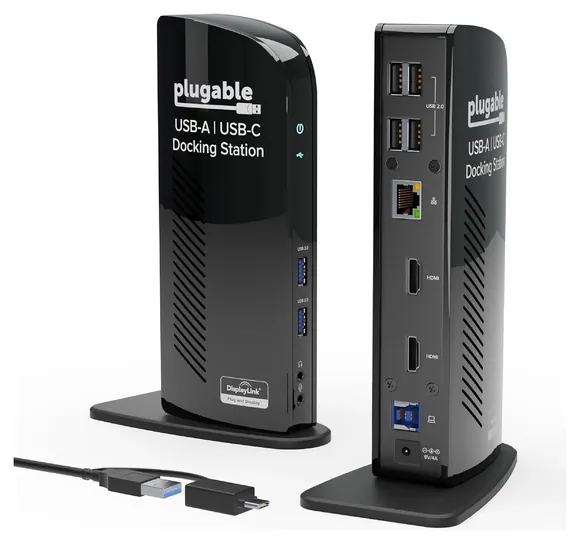
The way around both limits is DisplayLink. A DisplayLink dock, such as the Plugable UD-3900PDZ or UD-3900, has its own graphics chip and needs a free driver from Synaptics. It's fine for documents, email and browsing at full HD, but it isn't meant for games, and some protected streaming video won't play on those screens.
Power, Heat And Firmware
A dock should supply at least as much power as your laptop's own charger. If it doesn't, the battery can slowly drain under heavy work. Docks that deliver 90 to 100 watts cover most thin laptops, while gaming and workstation laptops often need their own charger as well. Bus-powered docks like the Anker PowerExpand 8-in-1 have no supply of their own and pass through whatever charger you plug into them, minus a few watts.
Use the power adapter and cable that came with the dock, and keep its vents clear. Fanless docks get warm to the touch, which PCWorld notes in its dock reviews; give them some air rather than tucking them under papers. Don't let a dock hang from its laptop cable.
If monitors blank out or wired internet vanishes, update the dock's firmware and the laptop's Thunderbolt or USB-C drivers before anything else. Dell, Plugable and CalDigit all post firmware updates on their support sites. We checked every brand on this list against the CPSC recall database and found no docking station recalls.
How we researched this
We compared 16 docking stations, read the makers' spec sheets and compatibility notes for the 9 finalists, used independent reviews from PCWorld, Tom's Guide and TechRadar where they existed, analyzed owner feedback for connection and display problems, and checked every brand against Consumer Product Safety Commission recall records.
Sources (12)
- PCWorld: Best laptop docking stations
- Tom's Guide: Plugable TBT4-UD5 review
- TechRadar: Anker Prime 14-in-1 dock review
- byrdpilot: Docking station buying guide
- Plugable knowledge base: Thunderbolt docks and M1 Macs
- Plugable: TBT4-UD5
- CalDigit: TS4
- CalDigit: TS5 Plus
- Synaptics: DisplayLink drivers
- Thunderbolt Technology
- USB-IF: USB4
- CPSC SaferProducts.gov recall search
Frequently asked questions
What's the difference between a hub and a docking station?
A hub is small and runs on your laptop's power, so it adds a few ports but usually can't charge the laptop on its own. A docking station has its own power supply, more ports, and charges the laptop through the same cable.
Do I need a Thunderbolt dock?
Only if your laptop has a Thunderbolt or USB4 port and you want two 4K monitors, fast storage or the most charging power. A plain USB-C dock costs less and works on more laptops, but it can do less.
Why do both of my monitors show the same thing on my Mac?
Many USB-C docks can only mirror two screens on a Mac. Base M1 and M2 Macs also support just one external display. A Thunderbolt dock on a Pro or Max Mac, or a DisplayLink dock with its driver, lets you extend across two or three screens.
Is it bad to leave a laptop plugged into a dock all the time?
Modern laptops manage their own charging, and many have a setting that holds the battery below full when they're mostly docked. Turn that on if your laptop has it, and keep the laptop and dock where air can move around them.
Will a docking station charge my phone?
Most docks charge a phone from their USB ports, but usually slowly. Docks built for charging, like the Anker Prime 14-in-1, have high-power USB-C ports that charge phones and tablets quickly.
Which docking station brands are reliable?
CalDigit, Plugable, Dell, Kensington, Lenovo and StarTech have long histories with laptop docks and publish firmware updates and compatibility lists. Pick the brand whose dock matches your laptop's port and monitor limits, then check its firmware page.